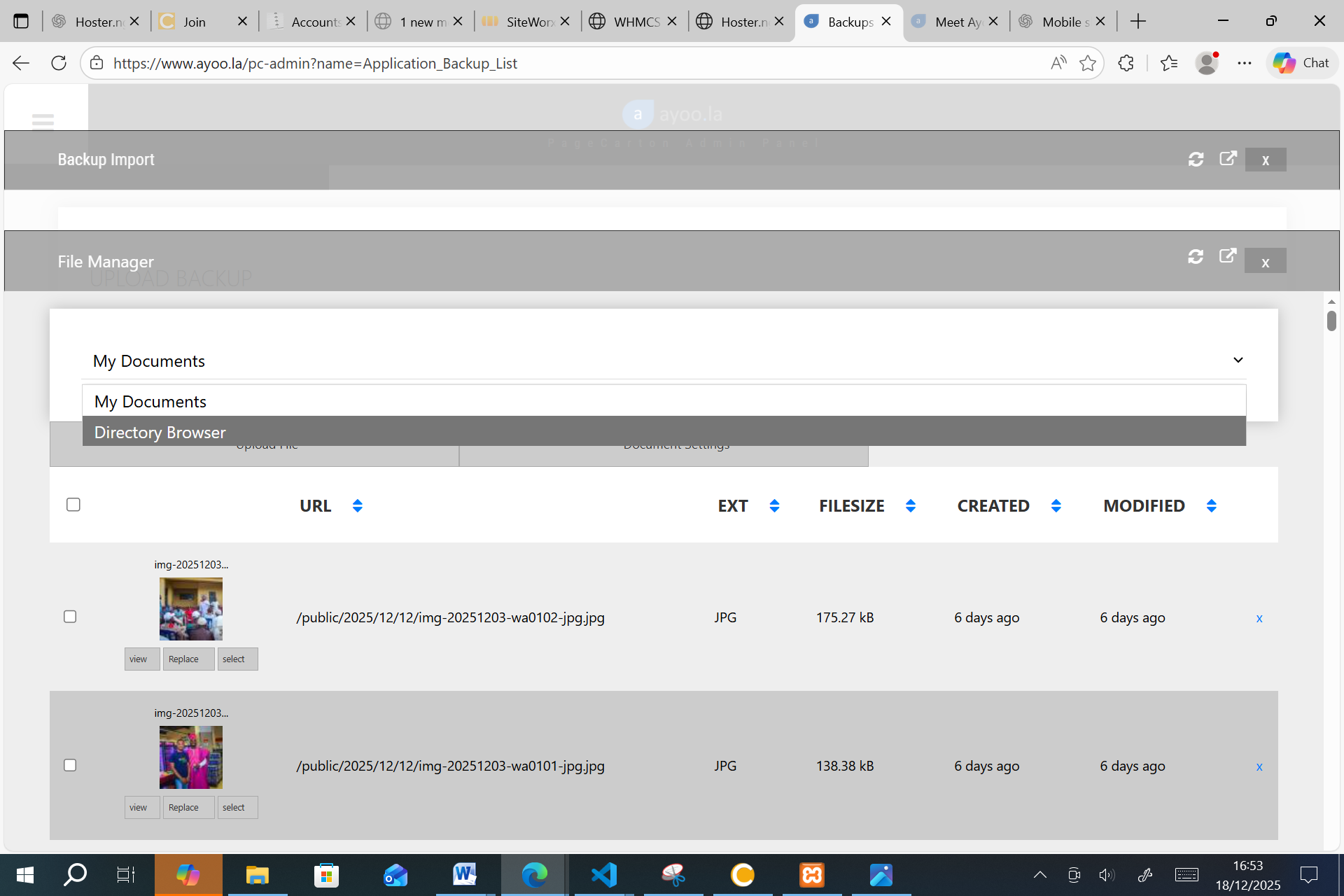
When restoring a PageCarton website, you may encounter upload size limitations within the PageCarton admin dashboard. In such cases, the recommended solution is to upload the backup file directly through the Hoster.ng File Manager and restore it manually.
Uploading a Backup File to Hoster.ng
Step 1: Log in to SiteWorx
- Log in to your Hoster.ng client dashboard.
- Open your active hosting service.
- Click Login to SiteWorx to access the hosting control panel.
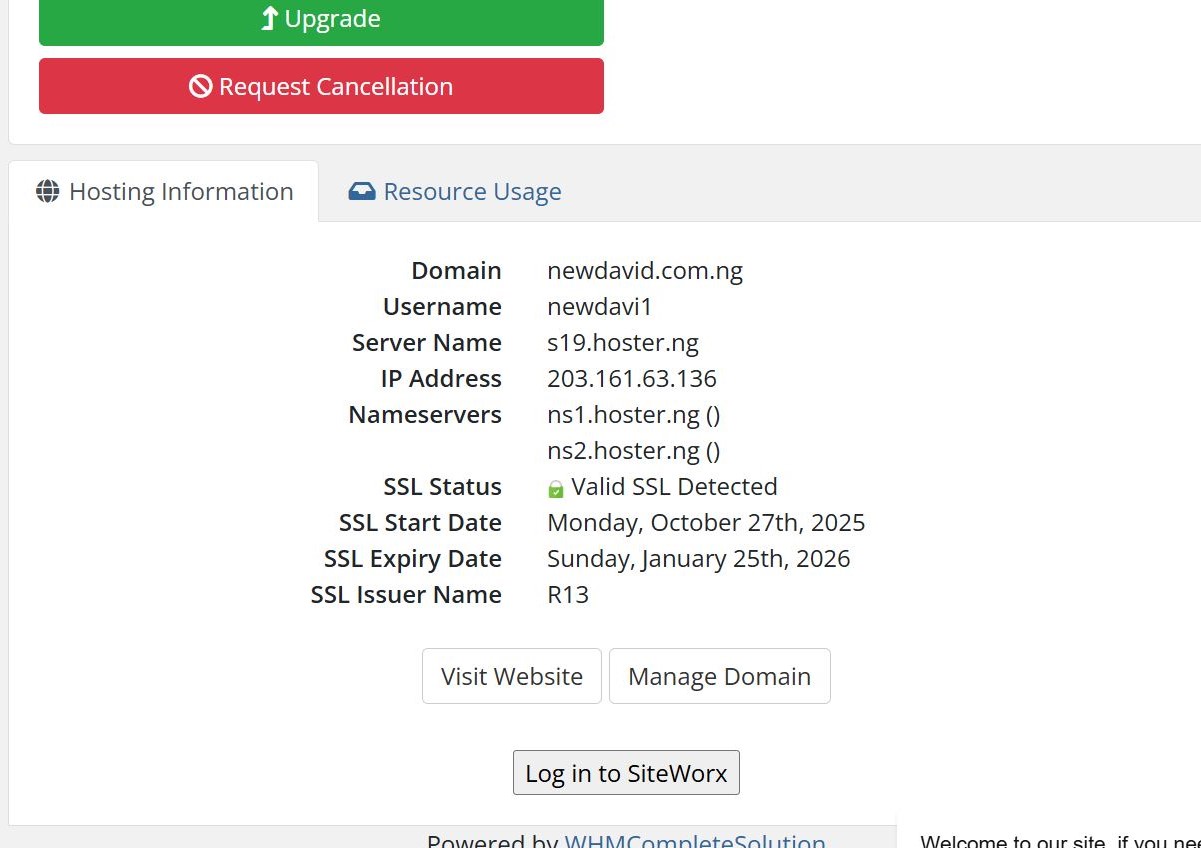
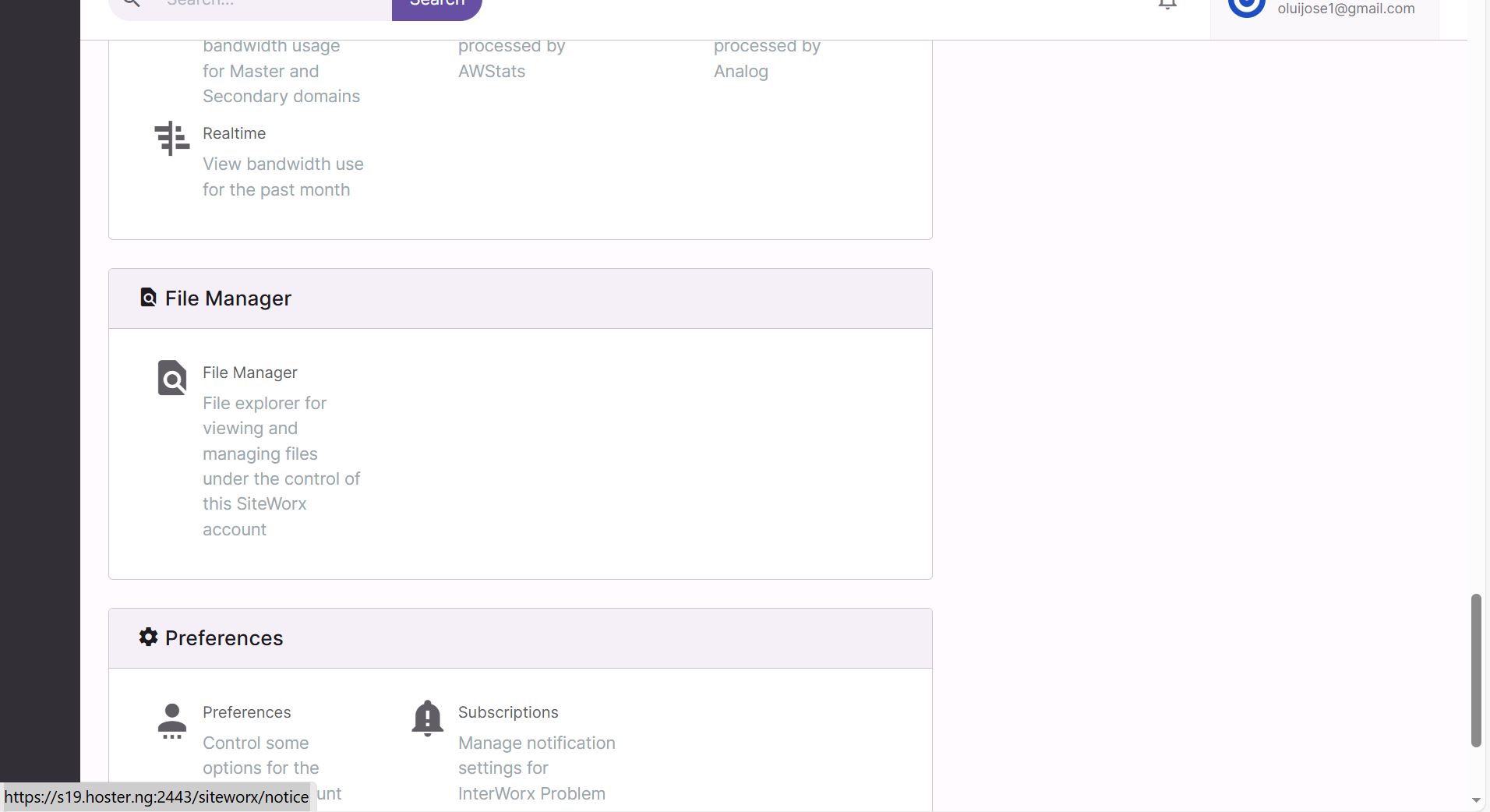
Step 2: Access the File Manager
- From the SiteWorx dashboard, locate and click File Manager.
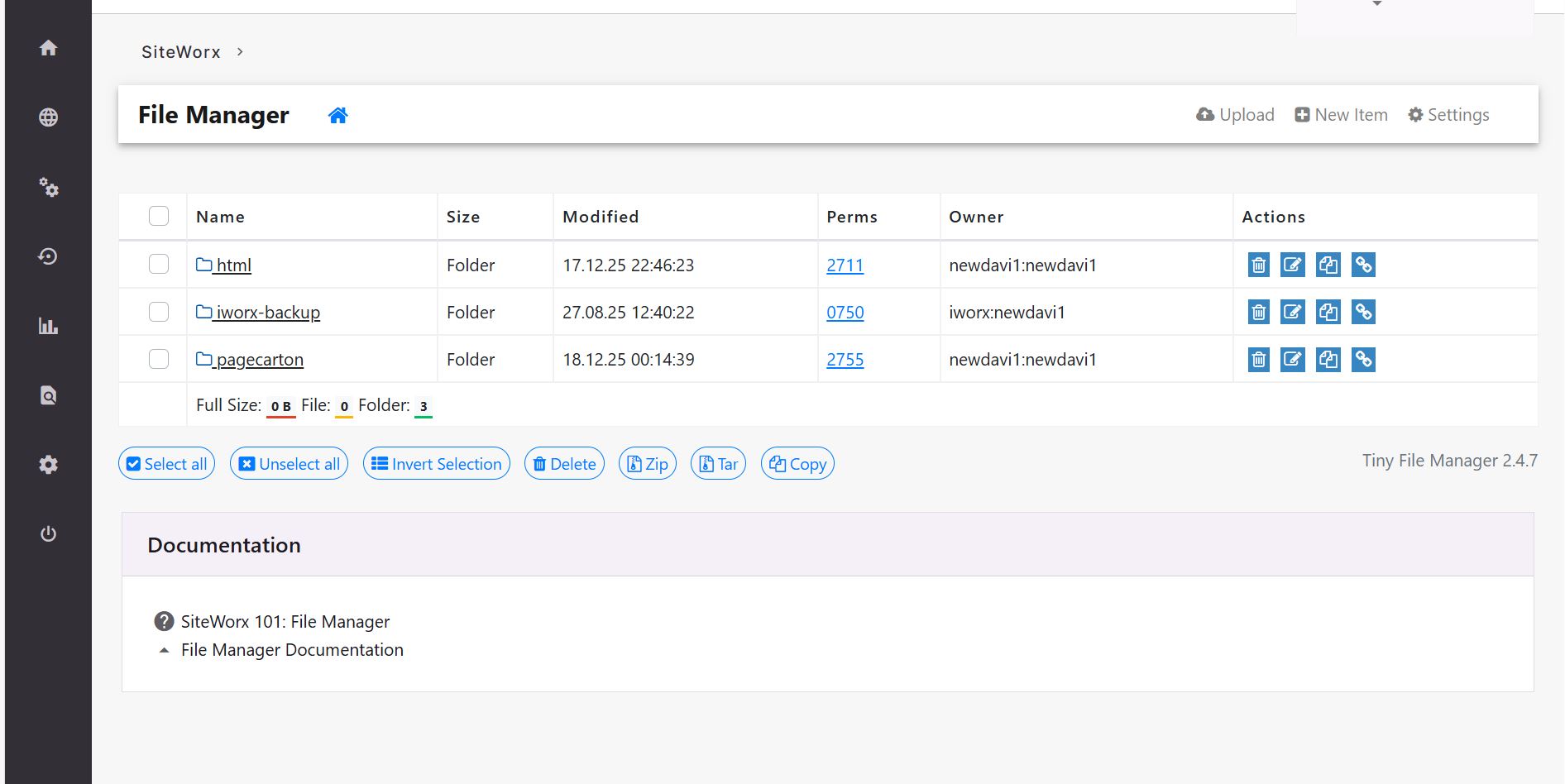
- Click on Pagecarton – Sites – Application – Documents - Public
- Upload the backup file into Public Folder
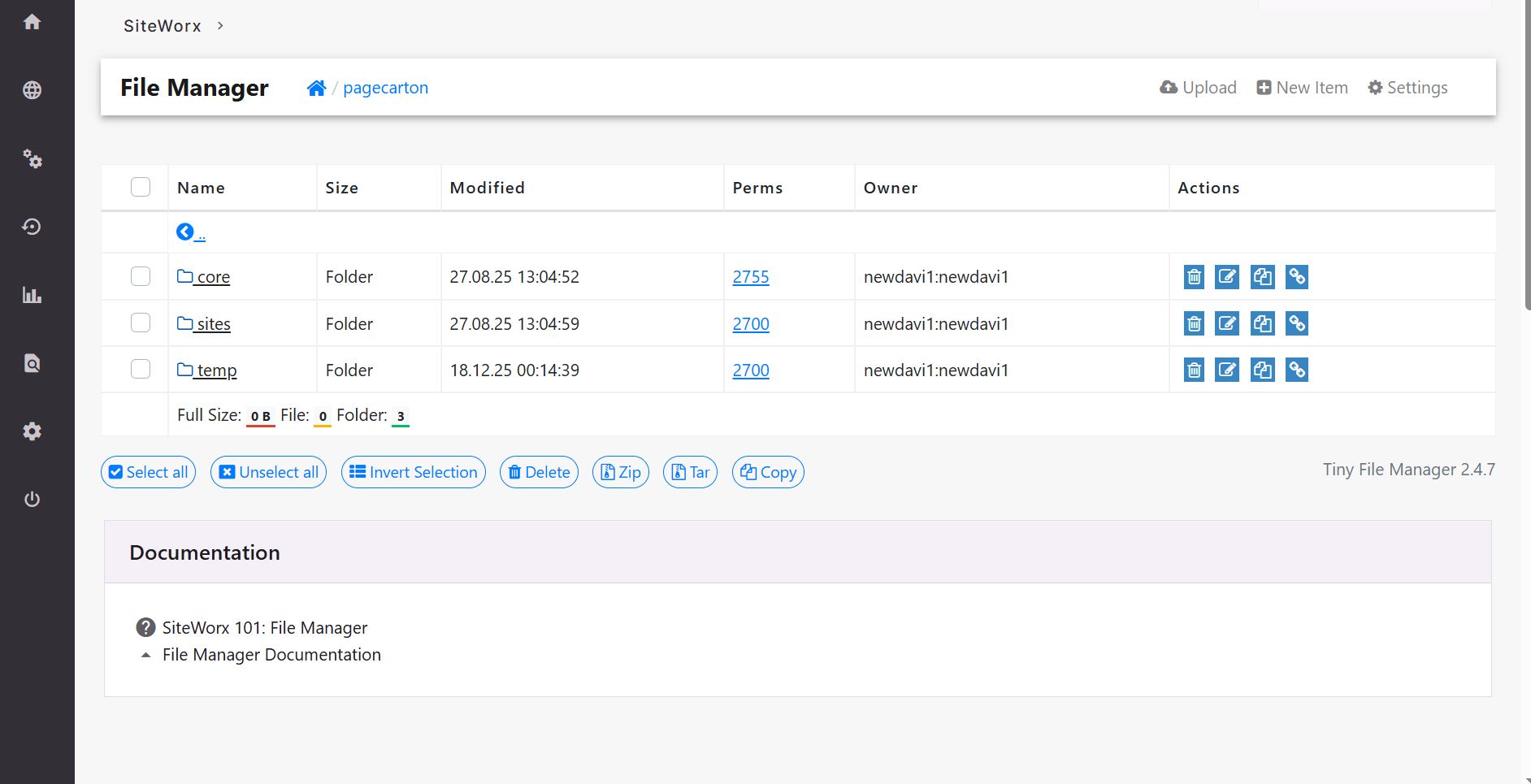
Step 3: Complete Restoration in PageCarton
- Open your website URL in a browser.
- Log in to the PageCarton admin panel.

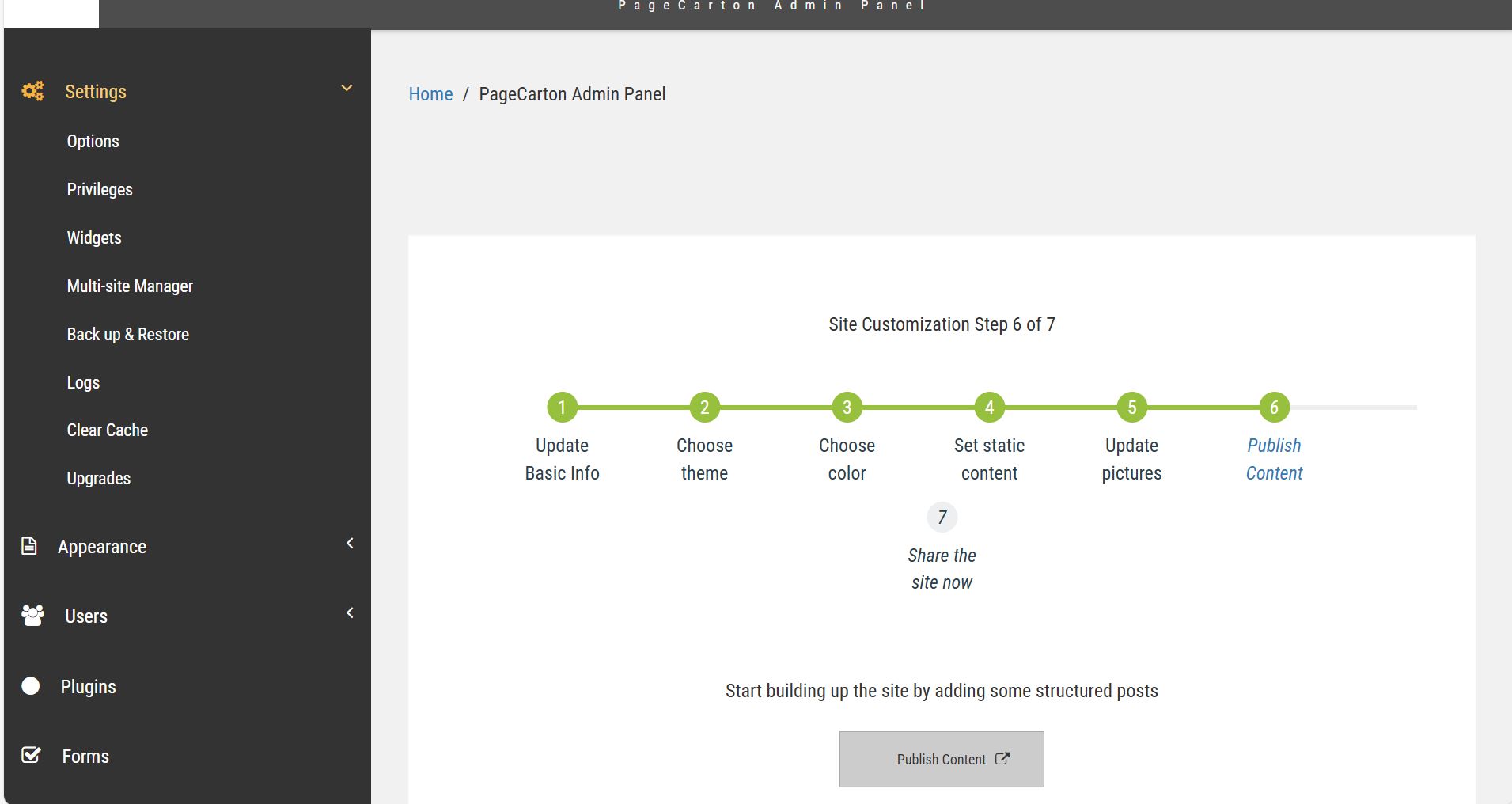
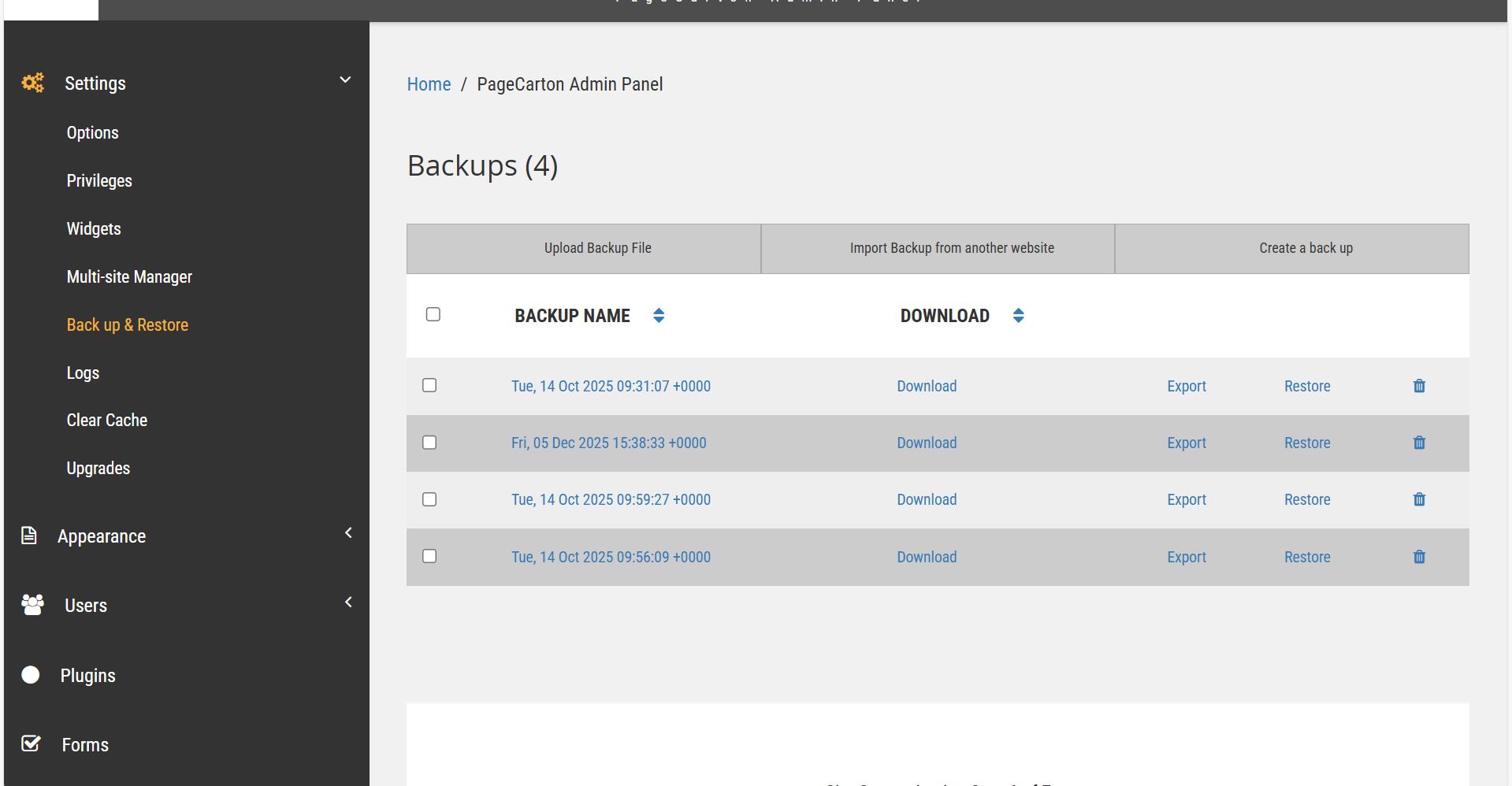
Click on the Settings menu then click on Backup and Restore Option
 Click on upload Backup and click on Browse button
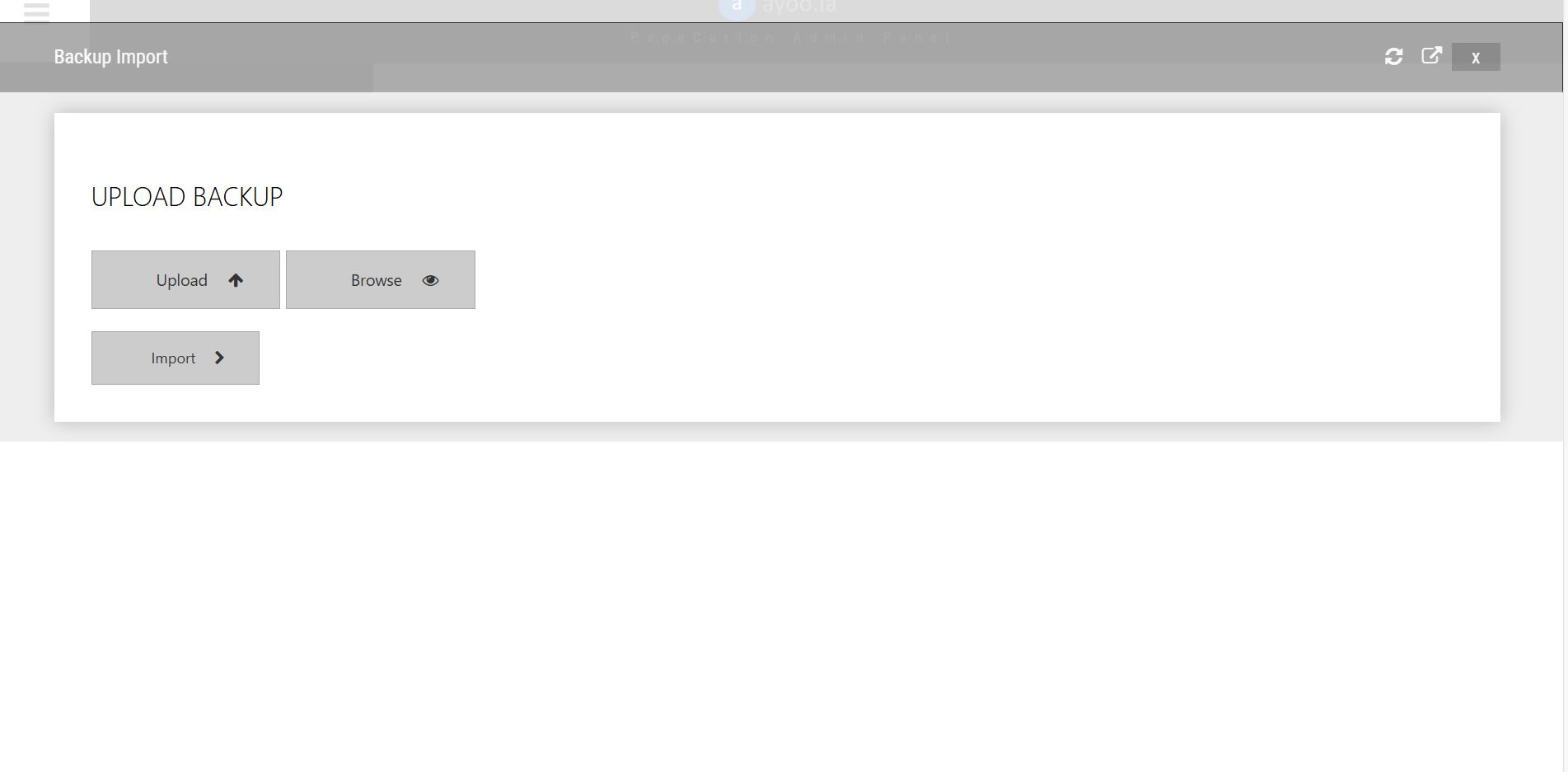
On the Directory Browser click on public folder, select the backup file and restore.