
To make use of PageCarton on Hoster.ng, the PageCarton files must be properly uploaded and extracted into your website directory using the File Manager.
Requirements
Before proceeding, ensure that:
- Your domain and hosting are active
- You have downloaded the PageCarton ZIP file and extract to your computer
- You have access to SiteWorx.
Step 1: Log in to SiteWorx
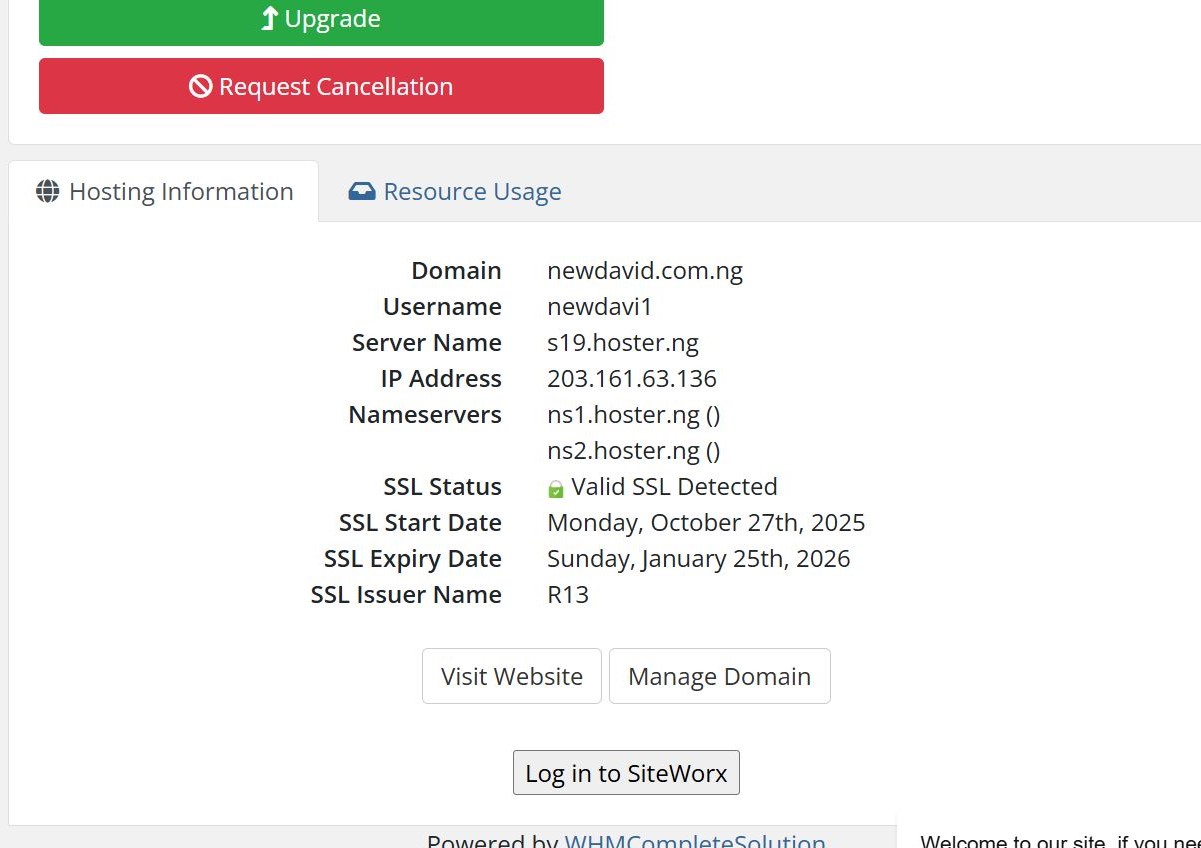
- Log in to your Hoster.ng client dashboard.
- Open your active hosting service.
- Click Login to SiteWorx to access the hosting control panel.
Step 2: Open the File Manager
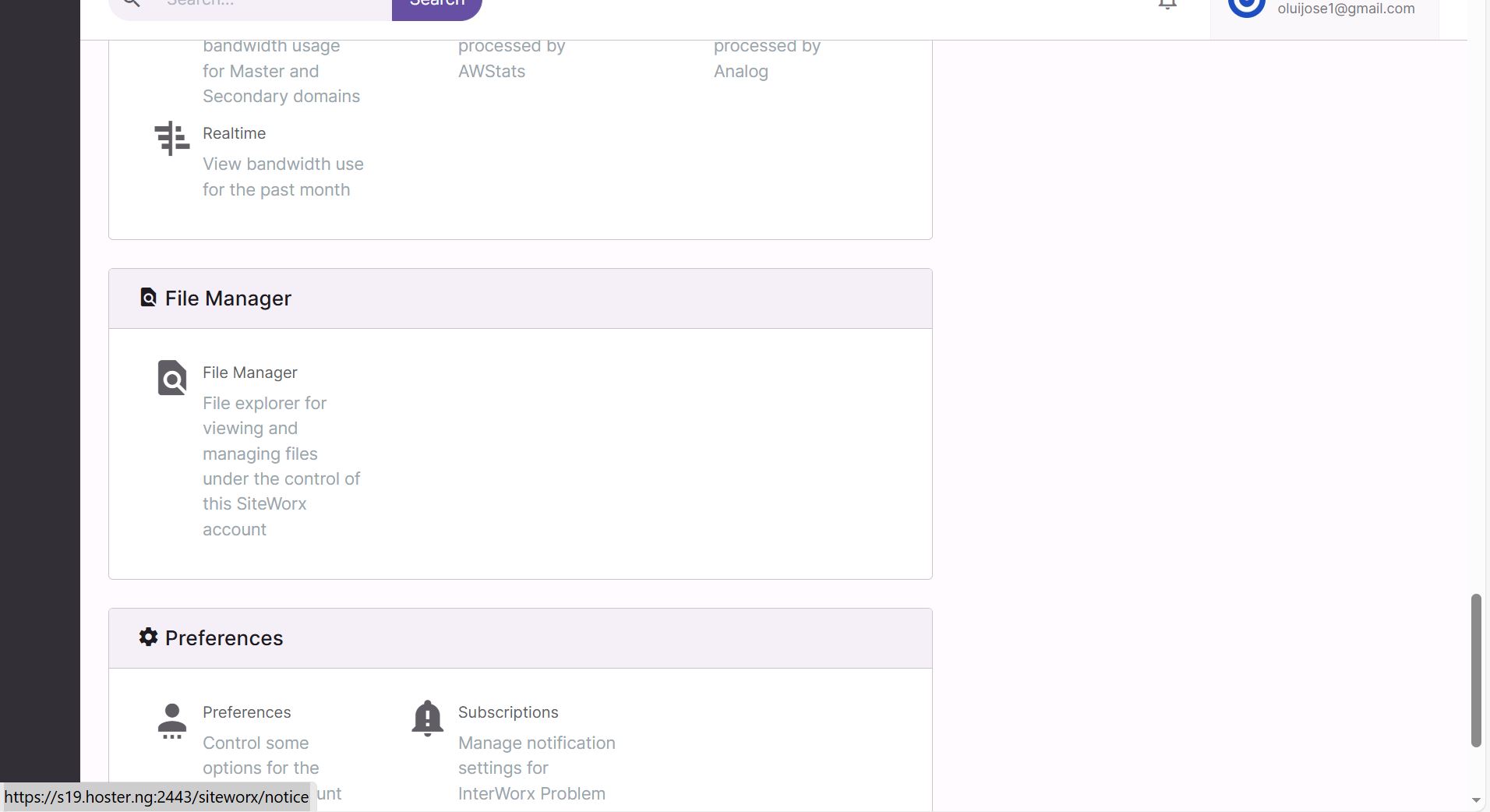
From the SiteWorx dashboard, locate and click File Manager (Choose a domain you want to work in case of multiple domain account).
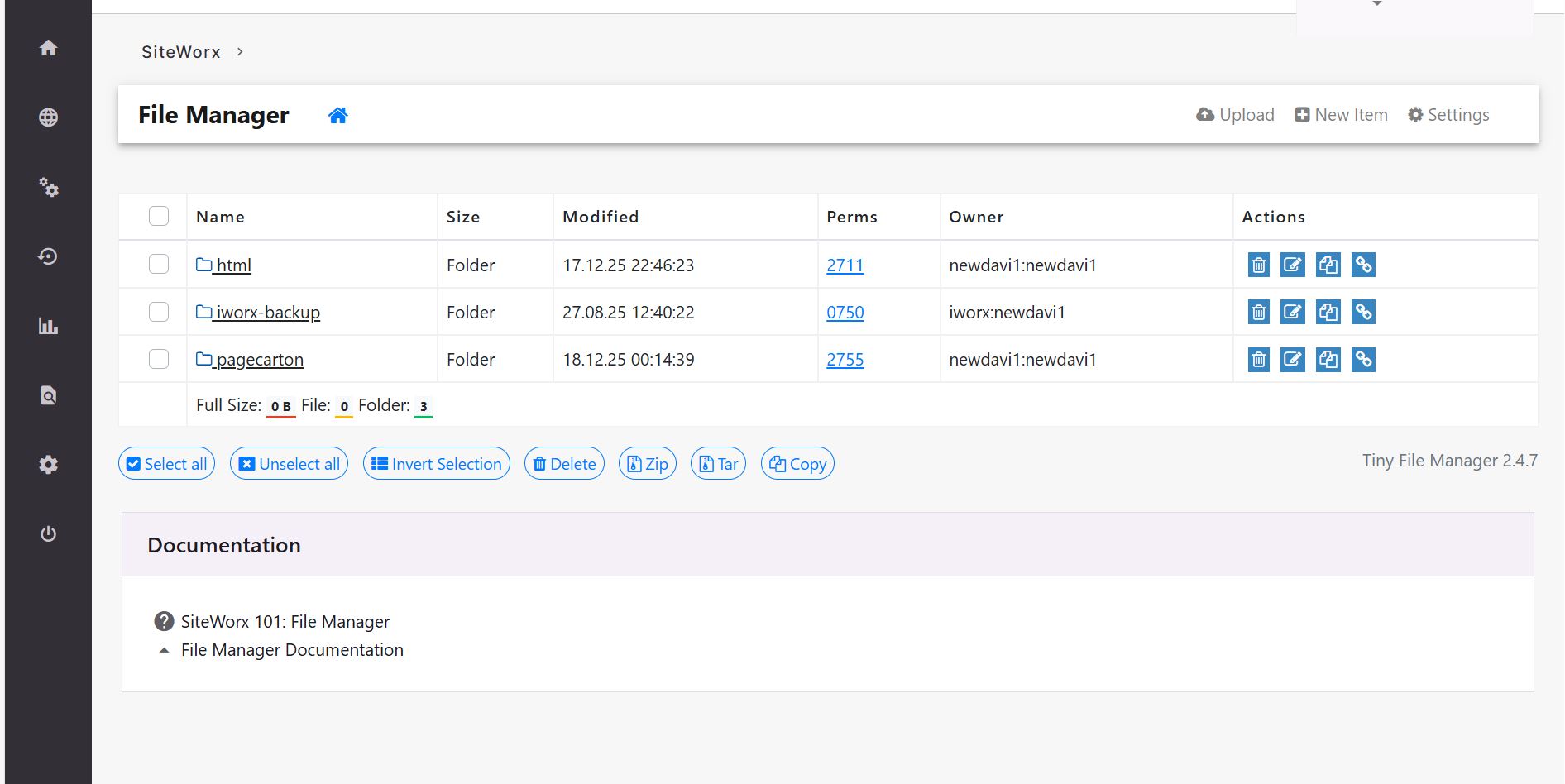
 Navigate to the website root directory (html) and click on it.
Step 3: Upload the extracted PageCarton File
Click the Upload button on the interface.
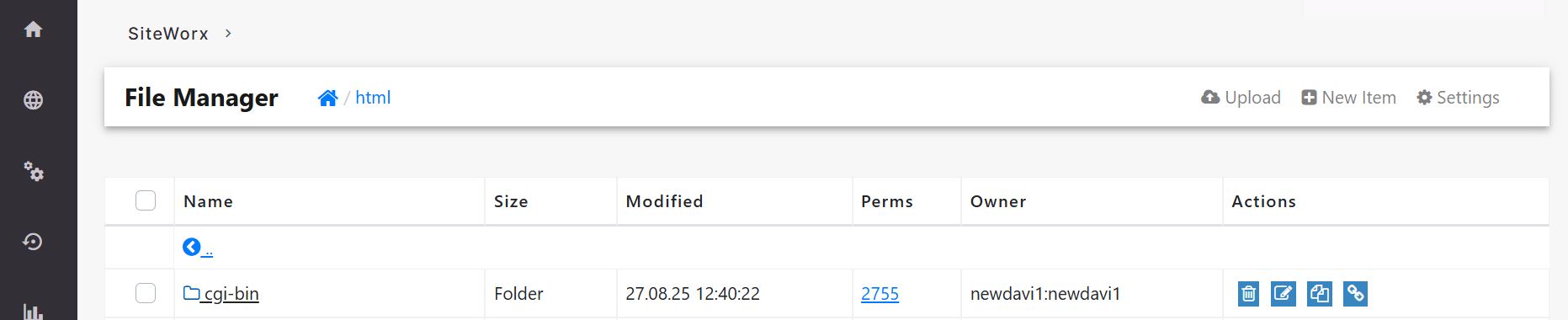 Select the extracted PageCarton file from your computer.
Wait for the upload process to complete fully.
Step 4: Install PageCarton
Follow the installation process on PageCarton Documentation. ( Installing PageCarton - PageCarton Posts)